Attendance Management
Subject-wise, faculty-wise student attendance marking in
3 simple steps — with daily reports and division summary reports.
How Attendance Management Works
The Attendance module allows faculty to record student attendance for every class session — tied to a specific subject, standard, division, and faculty member. The student list auto-populates from enrollment data. Faculty marks each student as Present, Absent with Reason, Absent without Reason, Late, or Withdrawn. Daily and summary reports are available instantly.

Attendance submenu — accessible from Students → Attendance in the Education menu

Attendance Form — Faculty: Geeta, Standard: 11, Division: A, Subject: Science. Students auto-loaded with Present/Absent/Late buttons
Step-by-Step Workflow
Step 1 — Open Attendance
Go to Education → Students → Attendance → New.
Step 2 — Select Faculty, Standard, Division and Subject
Choose the faculty, standard (e.g. 11), division (e.g. A), and subject (e.g. Science). All enrolled students appear automatically in the Attendance tab below.
Step 3 — Mark Attendance
Select students and click: Present, Absence Reason, Absence No Reason, Late, or Withdraw. Use "Select All" for the full class. Each entry is date-stamped automatically.
Step 4 — Save the Record
Click Save. The record is stored with faculty, subject, standard, division, date and per-student status.
Step 5 — Generate Daily Attendance Report
Go to Education → Reports → Attendance. Select date range, faculty, standard, division. The report shows a full daily grid — dates across columns, students in rows.


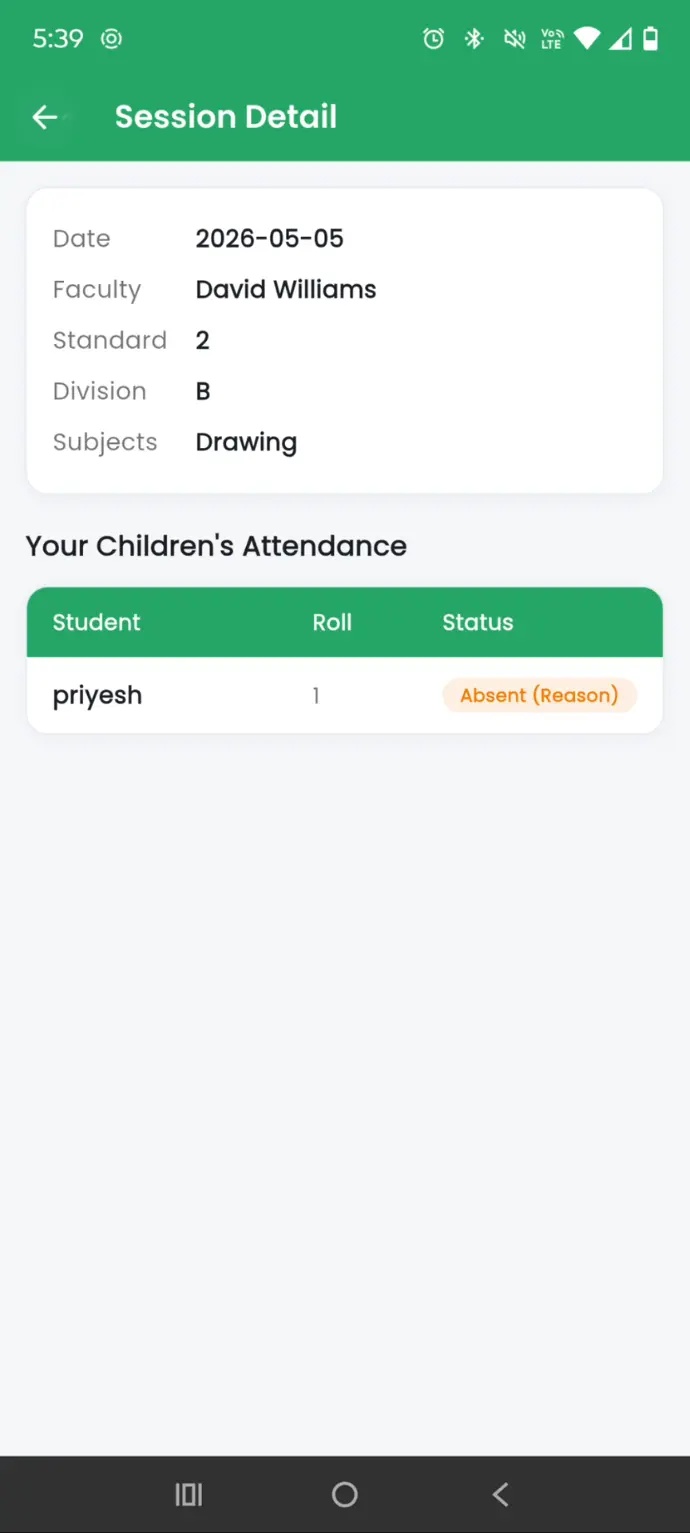
Parent Portal - showing attendance of all their students subject wise.